First lines on screen: the lcd and ui modules
Module 1 — Existing UI-based Application · Slides: slides.md · Module overview · Course page
Put your first text on the board’s screen with the lcd, ui and time modules, and learn the rules that make text vanish silently, before combining it all into one status screen.
Objectives
Section titled “Objectives”By the end of this lesson you will be able to:
- Send one line of text to three destinations (print, lcd.print, ui.Label) and find it in all three places, calling ui.poll() every time you create or change a widget
- Predict whether a chunk of Thai text fits in one lcd.print() call (127 bytes) by counting with len(text.encode()), and split text that is too long before sending it
- Explain and reuse the structure of 08_status_screen.py: create widgets once outside the loop, overwrite them with .text() or .value(), and print to the Console drawer only when the level changes
- Complete level_name() in 09_your_level_rule.py until all six rows in CASES are green, including the values right on the lines 49, 50, 79 and 80
Before you start
Section titled “Before you start”Keep your learning log from lesson 1.1 open. On the board’s screen, touch the BENTO Playground card and leave it open every time before you send code, then open BENTO IDE on the computer and let it find the board. One board per team is enough, but take turns at the keyboard in every part.
- Equipment: an Eva Kit or TESAIoT Dev Kit board with the BENTO MicroPython firmware installed, or the BENTO Emulator in BENTO IDE
- Before this: Lesson 1.1 — Board tour: play with the real thing first
See it work first
Section titled “See it work first”Send 01_first_line.py to the board, then look at the board’s screen, not the computer’s. One label appears on the Playground page straight away,
but where did the other lines go? Try to find them before reading on: one line is in the BENTO IDE console on the computer,
and the other two are waiting in the Console drawer, which opens with the green icon button in the bottom-right corner of the Playground page
(a small red dot on the corner of the button means there are messages waiting). A silent screen usually means we are looking in the wrong place, not that the code is broken.
Concepts
Section titled “Concepts”The firmware already does about 70% of the heavy work for us: reading the sensors, drawing every menu, handling IPC between the two cores and running MicroPython. Our job is the remaining 30%: deciding what data to show, how to show it, and where to send it next. In this lesson our 30% is still very small, just printing to the screen, but the mechanism behind it is the same in every lesson from here on.
One line of text can go to three places, each different: print() goes to the console on the computer · lcd.print() goes to the Console drawer on the board ·
ui.Label goes straight onto the screen. The one rule to remember: after you create or change ui.*, tap ui.poll() once,
or the screen will freeze for about two seconds. And value= on a ui.Label is the font size, not a number to display.
Our drawing area is 792 x 398 pixels; about 100x58 in the bottom-right corner belongs to the Console button, so never place a widget over it.
The screen counts bytes, not characters. lcd.print() can send 127 bytes per call, and a ui label carries 126 bytes both when it is created and when you call .text().
One Thai character takes 3 bytes, so you get about 42 characters. The part that goes over is cut off without any error, and the \n at the end of the line disappears too.
The colours in the drawer are the same kind of thing: the five span classes (muted info ok warn error) are five levels of importance, not colours to pick as you like,
and a misspelt class name simply comes out in the normal colour, with no error to catch.
A value that changes all the time can be shown in two ways. The drawer way is lcd.clear() and then redrawing the whole page (more often than about 5 times a second, the eye sees the screen flicker).
The widget way is to create the widget once outside the loop and overwrite it with .text() or .value(), which is much cheaper because only the new value crosses between the cores.
Do not create a ui.Label with empty text, because the screen fills in the word Label by itself. As for time, sleep_ms() means sleep for
at least this long. The work before the sleep takes its own time, so the loop runs slower than you asked and the delay accumulates. Always measure with ticks_diff(), never by subtracting directly.
08_status_screen.py has not a single new command. What is new is how the pieces are joined together: the screen answers “how are things now”,
the drawer answers “what has happened so far”, and it prints to the drawer only when the level changes. This is the file most worth re-reading in the set.
Worked example
Section titled “Worked example”The slides suggest opening the files in this order: 01_first_line.py → 02_markup_tags.py → 03_byte_limit.py → 08_status_screen.py
→ 09_your_level_rule.py. Every file ends with a ตาคุณ (your turn) block for you to edit and run again. In 03 and 07, predict before you run
and write the number you predicted in your learning log before you press send. Open the remaining files when you meet the matching symptom: text cut off at the end of a line,
open 06_safe_print.py · a report so long you cannot tell whether it passed, open 04_console_drawer.py · values flowing down until the screen is full,
open 05_clear_and_refresh.py · a loop that runs slower than you told it to and drifts more the longer it runs, open 07_ticks_and_beat.py
| File | What this file teaches |
|---|---|
| examples/01_first_line.py | The first line on the board’s screen |
| examples/02_markup_tags.py | Making the lines that need reading urgently stand out from the others |
| examples/03_byte_limit.py | Text longer than 127 bytes is cut off silently |
| examples/04_console_drawer.py | The Console drawer, and a summary card you can read without opening the drawer |
| examples/05_clear_and_refresh.py | Updating in the same place, as opposed to printing line after line downwards |
| examples/06_safe_print.py | A print helper that is never cut off silently |
| examples/07_ticks_and_beat.py | A loop that sleeps the same amount every round does not keep time |
| examples/08_status_screen.py | One status screen, with three modules sharing the work |
| examples/09_your_level_rule.py | This file runs, but still gets every answer wrong; your job is to make it right |
Screens from the BENTO Emulator for this lesson’s examples (click a file name to open the code)
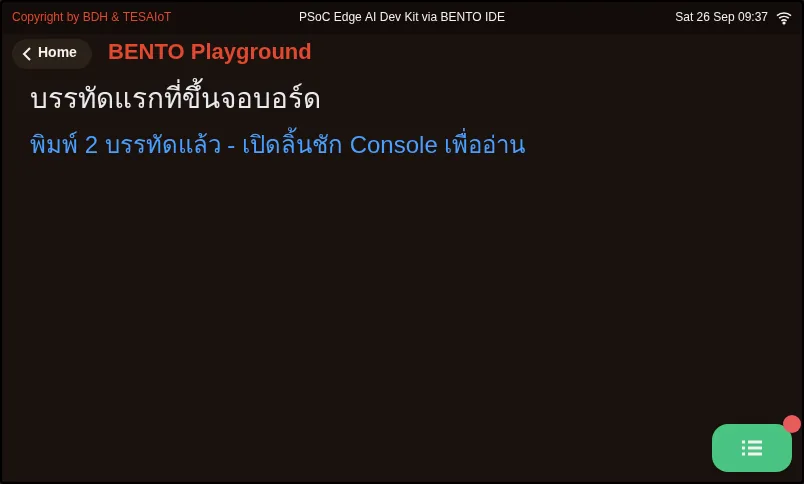
01_first_line.py The first line on the board's screen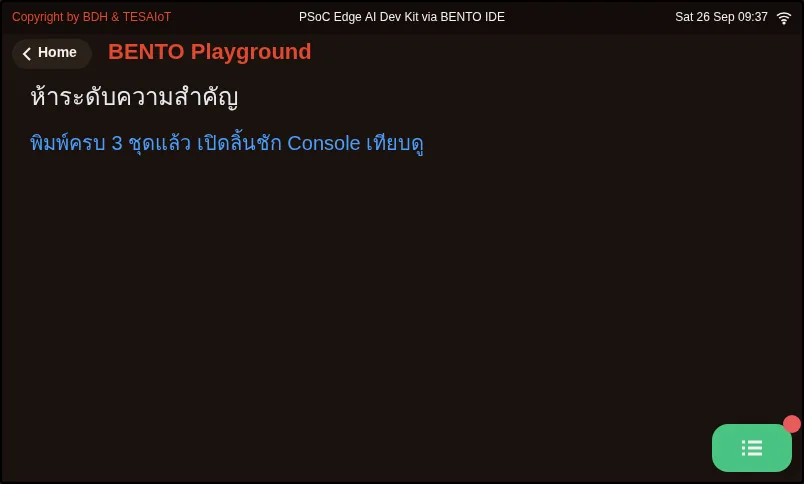
02_markup_tags.py Making the lines that need reading urgently stand out from the others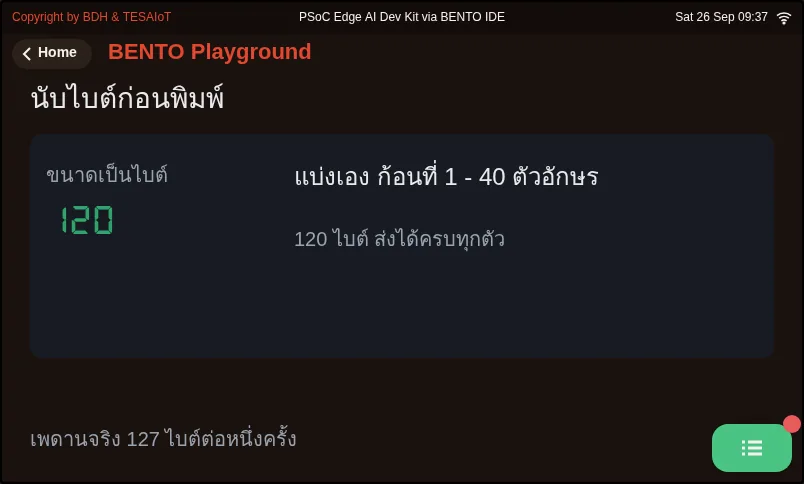
03_byte_limit.py Text longer than 127 bytes is cut off silently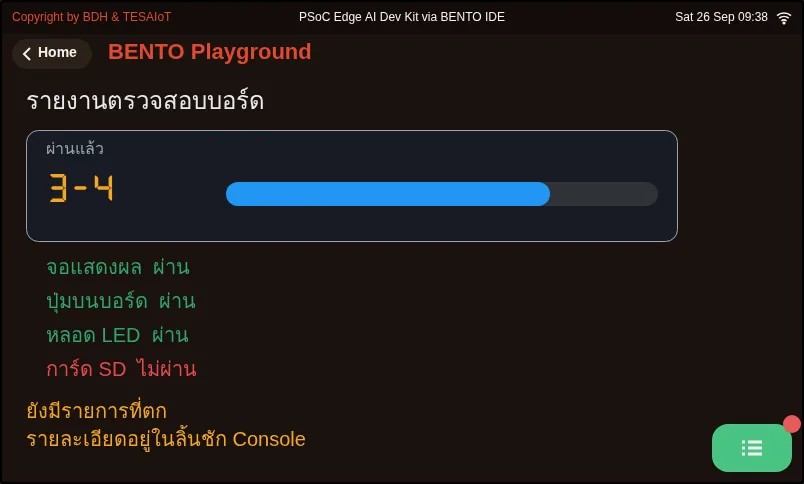
04_console_drawer.py The Console drawer, and a summary card you can read without opening the drawer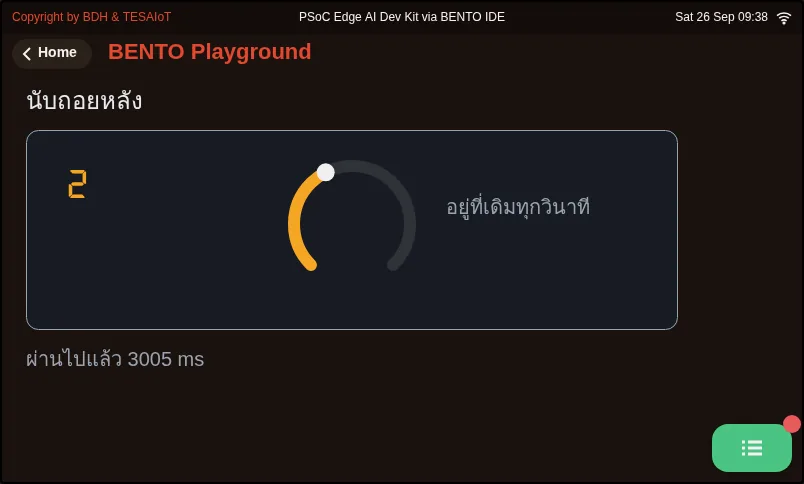
05_clear_and_refresh.py Updating in the same place, as opposed to printing line after line downwards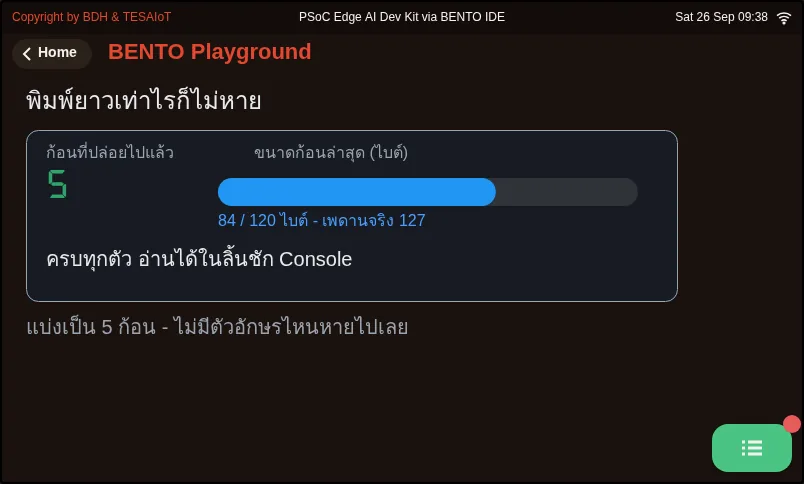
06_safe_print.py A print helper that is never cut off silently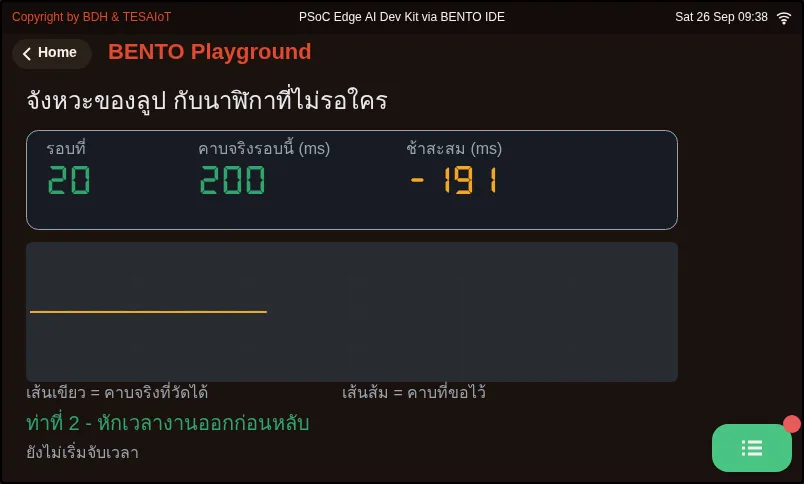
07_ticks_and_beat.py A loop that sleeps the same amount every round does not keep time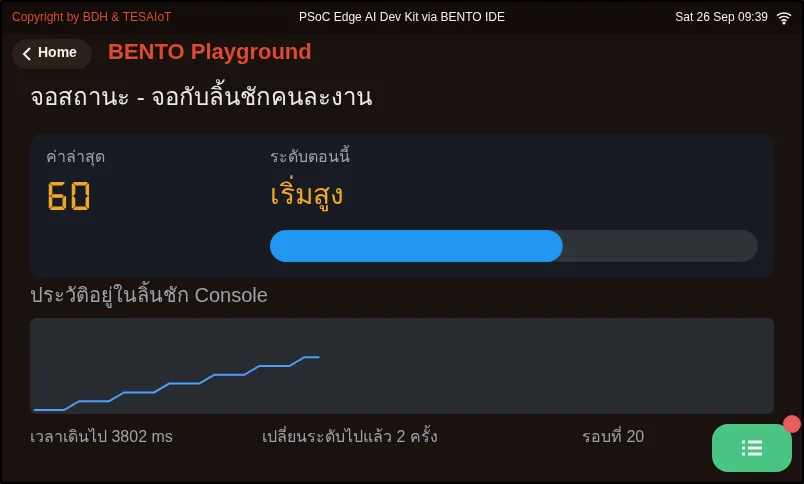
08_status_screen.py One status screen, with three modules sharing the work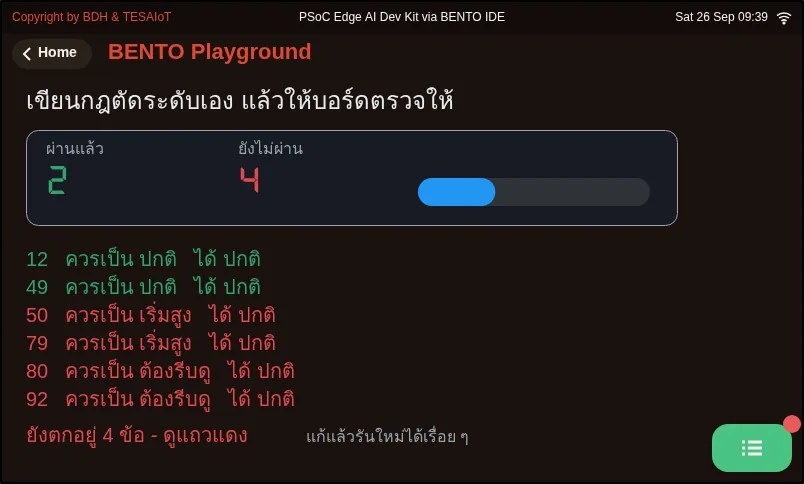
09_your_level_rule.py This file runs, but still gets every answer wrong; your job is to make it rightCheck your understanding
Section titled “Check your understanding”The same questions are in quiz.yaml for automatic marking.
-
You create a ui.Label on the Playground page and the screen freezes for about two seconds before the label appears. What is the most likely cause? (choose one · objective 1)
- A) ui.poll() has not been called after creating the widget
- B) value= is set wrongly, because value= is the number the label displays
- C) The label must use lcd.print() instead to appear immediately
- D) The board is not connected to WiFi yet
Solution
A — After you create or change ui.*, you must tap ui.poll() once. If you do not, the label still comes, but about two seconds late. value= on a ui.Label is the font size.
-
Which statements give the destination of the text correctly? Choose every correct answer. (choose all that apply · objective 1)
- A) print() appears in the BENTO IDE console on the computer, not on the board’s screen
- B) lcd.print() waits in the Console drawer; you must touch the green icon button in the bottom-right corner to see it
- C) ui.Label appears on the Playground page without pressing anything
- D) All three commands appear in the same place and differ only in text colour
Solution
A, B, C — One line can go to three different places: print() is on the computer, lcd.print() is in the Console drawer and ui.Label is on the screen. So a silent screen usually means we are looking in the wrong place.
-
You call lcd.print() once with a Thai text 50 characters long. What happens? (choose one · objective 2)
- A) The text is cut at 127 bytes without any error, and the \n at the end of the line disappears too
- B) You get an error saying the text is too long
- C) The screen wraps onto new lines by itself until every character is shown
- D) It is shown in full, because 50 characters is still below 127
Solution
A — One Thai character takes 3 bytes, so 50 characters are 150 bytes, over the ceiling of 127 bytes per call. The excess is cut off silently. Count with len(text.encode()), not len(text).
-
How should you write a status screen whose value changes every 200 ms? (choose one · objective 3)
- A) Create the widgets once outside the loop, overwrite them with .text() or .value(), and print to the drawer only when the level changes
- B) Create a new ui.Label in the loop every round, so you always get the latest value
- C) lcd.clear() and redraw the whole page every 200 ms
- D) lcd.print() every round, so the history is as complete as possible
Solution
A — A widget created in the loop is a new widget every round, clearing the screen more often than about 5 times a second flickers, and a drawer written every round holds nothing but repeated lines that nobody can read. That is why 08_status_screen.py separates the screen’s job from the drawer’s job.
-
In level_name() you write if v >= 50 return “เริ่มสูง” (getting high) before if v >= 80 return “ต้องรีบดู” (check now). What result does the value 92 give? (choose one · objective 4)
- A) “เริ่มสูง”, without any error
- B) “ต้องรีบดู”, because 92 is greater than 80
- C) SyntaxError, because the conditions overlap
- D) “ปกติ” (normal)
Solution
A — 92 passes the 50 condition first, so it falls into the middle band and never reaches the top one, with no error to catch. Order the ifs from the strictest condition downwards.
The ตาคุณ (your turn) blocks you must do. Record the result of every item in your learning log.
-
01: add your team name to all three destinations, then note everywhere you have to look to see all of them -
02: find the line inREPORTthat has the wrong level and fix it, then add one more line of team news and choose its level -
03: put the members’ Thai names intoITEMS; first predict how many bytes each is and whether it will be green or red, then run and compare -
08: movelcd.print()out of theifso it fires every round, then answer which kind of history is more useful in practice -
09: completelevel_name()until all six rows are green, then add a row toCASESthat you think your own rule is likely to fail
Going further
Section titled “Going further”Lesson 1.3 opens the other modules in the box (gpio sensors dsp mic machine) and has each team complete the practice file
s01_hello_lcd.py until the team name appears on screen. The remaining rules of ui are in lessons 2.4–2.6, and the simulated values in 08
are replaced with values from real sensors from lessons 2.7–2.9 onwards.
Next lesson: Lesson 1.3 — Inside the box: two cores, AIoT and your team’s screen
Reflect
Section titled “Reflect”- What kind of line in your work should make someone walking past get up from their chair, and which class should it carry?
- Which piece of knowledge in this lesson relies on people’s discipline every single time, and how could you move it into a function?
- History written every round versus history written only on a change: which one can answer “at which second did the value reach the check-now level”?
Review questions
Answer on your own first, then open the answer.
-
You create a ui.Label on the Playground page and the screen stays still for about two seconds before it appears. What is the most likely cause? (Objective 1)
- ยังไม่ได้เรียก ui.poll() หลังสร้าง widget
- ตั้ง value= ผิด เพราะ value= คือตัวเลขที่ป้ายจะแสดง
- ป้ายต้องใช้ lcd.print() แทนจึงจะขึ้นทันที
- บอร์ดยังไม่ได้ต่อ WiFi
Show answer
Answer: A. ยังไม่ได้เรียก ui.poll() หลังสร้าง widget
สร้างหรือแก้ ui.* แล้วต้องเคาะ ui.poll() หนึ่งครั้ง ถ้าไม่เคาะ ป้ายก็ยังมาแต่ช้าไปราวสองวินาที ส่วน value= บน ui.Label คือขนาดตัวอักษร
-
Which statements about where text goes are correct? Choose all that apply. (Objective 1)
- print() ขึ้นที่คอนโซลของ BENTO IDE ฝั่งคอม ไม่ได้ขึ้นบนจอบอร์ด
- lcd.print() ไปรอในลิ้นชัก Console ต้องแตะปุ่มไอคอนสีเขียวมุมขวาล่างจึงจะเห็น
- ui.Label ขึ้นบนหน้า Playground ได้โดยไม่ต้องกดอะไร
- ทั้งสามคำสั่งขึ้นที่เดียวกัน ต่างกันแค่สีตัวอักษร
Show answer
Answer: A. print() ขึ้นที่คอนโซลของ BENTO IDE ฝั่งคอม ไม่ได้ขึ้นบนจอบอร์ด · B. lcd.print() ไปรอในลิ้นชัก Console ต้องแตะปุ่มไอคอนสีเขียวมุมขวาล่างจึงจะเห็น · C. ui.Label ขึ้นบนหน้า Playground ได้โดยไม่ต้องกดอะไร
หนึ่งบรรทัดไปได้สามที่คนละที่กัน print() อยู่บนคอม lcd.print() อยู่ในลิ้นชัก Console และ ui.Label อยู่บนหน้าจอ จอเงียบจึงมักแปลว่าเรามองผิดที่
-
You call lcd.print() once with a 50-character Thai string. What happens? (Objective 2)
- ข้อความถูกตัดที่ 127 ไบต์โดยไม่มี error และ \n ท้ายบรรทัดหายไปด้วย
- ได้ error บอกว่าข้อความยาวเกิน
- จอขึ้นบรรทัดใหม่ให้เองจนครบทุกตัว
- แสดงครบ เพราะ 50 ตัวอักษรยังไม่ถึง 127
Show answer
Answer: A. ข้อความถูกตัดที่ 127 ไบต์โดยไม่มี error และ \n ท้ายบรรทัดหายไปด้วย
ไทยหนึ่งตัวกิน 3 ไบต์ 50 ตัวจึงเป็น 150 ไบต์ เกินเพดาน 127 ไบต์ต่อครั้ง ส่วนเกินถูกตัดเงียบ ๆ นับด้วย len(text.encode()) ไม่ใช่ len(text)
-
How should a status screen whose value changes every 200 ms be written? (Objective 3)
- สร้าง widget ครั้งเดียวนอกลูป เขียนทับด้วย .text() หรือ .value() และพิมพ์ลงลิ้นชักเฉพาะตอนระดับเปลี่ยน
- สร้าง ui.Label ใหม่ในลูปทุกรอบ จะได้ค่าล่าสุดเสมอ
- lcd.clear() แล้ววาดใหม่ทั้งหน้าทุก 200 ms
- lcd.print() ทุกรอบ ประวัติจะได้ครบที่สุด
Show answer
Answer: A. สร้าง widget ครั้งเดียวนอกลูป เขียนทับด้วย .text() หรือ .value() และพิมพ์ลงลิ้นชักเฉพาะตอนระดับเปลี่ยน
widget ที่สร้างในลูปคือ widget ใหม่ทุกรอบ ล้างจอถี่กว่าราว 5 ครั้งต่อวินาทีจะกระพริบ และลิ้นชักที่ยิงทุกรอบมีแต่บรรทัดซ้ำจนไม่มีใครอ่านไหว 08_status_screen.py จึงแยกงานจอกับงานลิ้นชักออกจากกัน
-
In level_name() you check v >= 50 (returns "เริ่มสูง") before v >= 80 (returns "ต้องรีบดู"). What does 92 return? (Objective 4)
- "เริ่มสูง" โดยไม่มี error ใด ๆ
- "ต้องรีบดู" เพราะ 92 มากกว่า 80
- SyntaxError เพราะเงื่อนไขซ้อนกัน
- "ปกติ"
Show answer
Answer: A. "เริ่มสูง" โดยไม่มี error ใด ๆ
92 ผ่านเงื่อนไข 50 ก่อนจึงตกช่องกลาง และไม่มีวันไปถึงช่องบน โดยไม่มี error ให้จับ ต้องเรียง if จากเงื่อนไขที่เข้มที่สุดลงมา
Cite this lesson
If you teach from this lesson or reuse it in slides or documents, credit it with the text below. If you changed it, add (adapted) after the title.
"First lines on screen: the lcd and ui modules" from TESA Open Knowledge by the Thai Embedded Systems Association (TESA), https://github.com/tesaiot/tesa-qualification-program, licensed under CC BY-NC 4.0
Thai attribution: "ข้อความแรกขึ้นจอ: โมดูล lcd กับ ui" จาก TESA Open Knowledge โดยสมาคมสมองกลฝังตัวไทย (Thai Embedded Systems Association: TESA) https://github.com/tesaiot/tesa-qualification-program สัญญาอนุญาต CC BY-NC 4.0
This lesson adapts the source below; keep its credit too.
https://github.com/Advance-Innovation-Centre-AIC/embedded-systems-for-aiot-developer/blob/a80bbe88a34bcb9bb8d991f42f9252b77cdab079/session-01.html (slides 8–22)
TESA Open Knowledge · © 2026 สมาคมสมองกลฝังตัวไทย (TESA) · CC BY-NC 4.0
Content is licensed CC BY-NC 4.0. Reuse it non-commercially and credit the Thai Embedded Systems Association (TESA) every time. · How to cite TESA