The starter: Sense, Decide, Show, Send
Module 5 — Capstone: AIoT Mini-Product · Slides: slides.md · Module overview · Course page
Take the s12_capstone_starter.py skeleton apart move by move (Sense, Decide, Show, Send and surviving a dropped network), practise the three examples that keep a demo standing, and run the skeleton on the board before changing anything.
Objectives
Section titled “Objectives”By the end of this lesson you will be able to:
- Locate the five moves in the starter, explain how read_value() returns a single value together with a stale flag, and name which part of the loop must keep working without the network
- Separate the measured value from the decided state with a decision function that checks the strictest threshold first, and state the cost of confirming N rounds in seconds (N times the loop period), using 01_state_machine.py and 02_confirm_n.py
- Check the starter’s screen against the four rules (value with its range, state as lamps, separate on and off buttons, a confirmation box that says what will happen before anything real moves) and avoid both ui.MsgBox traps
- Run the unmodified starter on the board, see a kind event message in MQTT Explorer when the board tilts past 15 degrees, see the screen show offline yet keep drawing when WiFi is off, and explain why reconnecting must be scheduled rather than retried every loop
Before you start
Section titled “Before you start”Bring the five-box canvas and schema table from lesson 5.1 with you in your learning log. If you still cannot answer what your team’s problem’s “single value” is,
the Sense box is not yet finished. Have MQTT Explorer ready on your computer (already used in lessons 4.4–4.6), the name and password of the WiFi
or hotspot the board will connect to, and a unique code for DEVICE_ID and the topic bento/<code>/...
(such as a lowercase English nickname followed by a random 4-digit number, nok4821, because the starter’s broker is public). The starter file is in lesson 5.3’s practice/.
- Equipment: an Eva Kit or TESAIoT Dev Kit board with the BENTO MicroPython firmware installed, or the BENTO Emulator in BENTO IDE
- Before this: Lesson 5.1 — From a real problem to a design: canvas, schema and designing for failure
Concepts
Section titled “Concepts”70 versus 30. What is already given is firmware that reads sensors and draws the screen, the modules sensors, dsp, ui, wifi, mqtt,
and the structure s12_capstone_starter.py, which already runs a full loop even before anything is changed. The team’s remaining 30% is decisions —
from what to measure, what threshold to set, how to design the screen, how to design the schema, all the way to what happens offline. The structure has five moves,
and every line that says “the team writes this” is exactly where the team’s work goes.
- Move 1, Sense
read_value()readssensors.bmi270.motion(), feeds it intodsp.tilt()(which always returns roll before pitch), then filters withdsp.EMA(alpha=0.2)— six axes in, one value out. If the read fails (OSError), it returns the last value and raises astaleflag so the screen shows “value stale, cannot read” instead of showing the old number as if it were fresh. There is no need to callsensors.init()on the Eva (calling it raisesOSError), and no need on the Dev Kit either. The field warning lamp is chosen by name fromgpio.board_info()["led_names"], because the index differs by board, andRGB_REDon the Eva is actually blue - Move 2, Decide
decide()checks the strictest threshold first, deciding on the board so it can still decide even if the network drops.on_state_change()is left for the team to write, for what happens when the state changes. The starter believes it the instant a value crosses once; the solution adds confirmation across 3 rounds in a row (CONFIRM_N) - Move 3, Show the screen follows four rules:
ui.Barlaid overui.Scale(Scale does not accept.value(); it is a ruler) · threeui.Leds that light one at a time (.value(0)dims, does not vanish) · separate on and off buttons · the off button must pass through a confirmation box. The bar and lamp move every round; the status label writes on a state change; the number is rewritten at most once a second, andlbl_nettells the truth about the network - Move 4, Send, and move 5, surviving a dropped network
send()checksmqtt.is_connected()before sending and returnsTrueorFalseso the caller knows the result. Reconnecting is scheduled everyRETRY_MS(10 seconds), so the loop runs every round regardless of the network’s state.client_id=DEVICE_IDmust never collide with another board, or two boards will keep kicking each other off the public broker in turns
The “sensor → decide → screen” path does not depend on the network; the “send to broker” path does. Design it so the important thing lives on the first path, and if one path fails, the other must not fail with it.
Two ui.MsgBox traps. A button built into MsgBox itself does not send an event Python can see at all. The starter therefore uses two real ui.Buttons,
created along with the screen and .hide()den. And MsgBox’s text carries 95 bytes (about 31 Thai characters);
anything longer is silently truncated. A confirmation message must state what will happen, for example “the field lamp will turn off immediately”,
never just ask “confirm?”
Worked example
Section titled “Worked example”Must be done. Open these in order, about 28 minutes total. Before running each file, read the “look at the screen” section at the top and predict what you will see.
01_state_machine.py(10 minutes) — watch the status label change colour when the chart crosses the amber and red lines, then try swapping the order ofifs inlevel_of()to check WARN before ALERT, and watch ALERT vanish, with no error at all02_confirm_n.py(10 minutes) — the left label “believe instantly” turns red on a single spike; the right label “confirm 3 rounds” stays green. Try changingCONFIRM_Nand read the “price paid” line in the Console03_reconnect_backoff.py(8 minutes) — editWIFI_SSID,WIFI_PASS,BROKERat the top of the file to match your own network first, then unplug the router, and watch the wait interval climb 2000, 4000, 8000 ms up to a ceiling, and reset the instant it reconnects
Whatever you’re stuck on, open this file. Unplug the router and the whole screen hangs — open 05_hmi_survives_offline.py (also needs WiFi
and broker edited at the top). Alerts fire so often people stop reading — open 04_heartbeat_and_alert.py, which separates heartbeat
from alert onto different rhythms and counts held-back messages. Teams who want to use sound as a data source, or want to see that the loop has not hung,
find files from other lessons referenced by the slides below.
| File | What this file teaches |
|---|---|
| examples/01_state_machine.py | Three states, and the dividing line decided in advance |
| examples/02_confirm_n.py | How many rounds in a row before it can be believed |
| examples/03_reconnect_backoff.py | Reconnect with growing backoff, never in a rapid burst |
| examples/04_heartbeat_and_alert.py | Two kinds of message, two rhythms, two separate jobs |
| examples/05_hmi_survives_offline.py | The screen must keep working when the network drops |
The slides for this lesson also refer to files that live in other lessons:
- m03-sensor-hmi/l06-accel-chart-lab/examples/01_imu_vibration_monitor.py — watching a machine’s vibration
- m03-sensor-hmi/l08-dashboard-build/examples/02_mic_sound_level_meter.py — a room sound-level meter
- m05-capstone/l03-build-and-present/practice/s12_capstone_starter.py — a mini-product starter structure: Sense -> Decide -> Show -> Send
- shared/usecase/02_heartbeat_liveness.py — a heartbeat lamp, telling you the loop has not died
Screens from the BENTO Emulator for this lesson’s examples (click a file name to open the code)
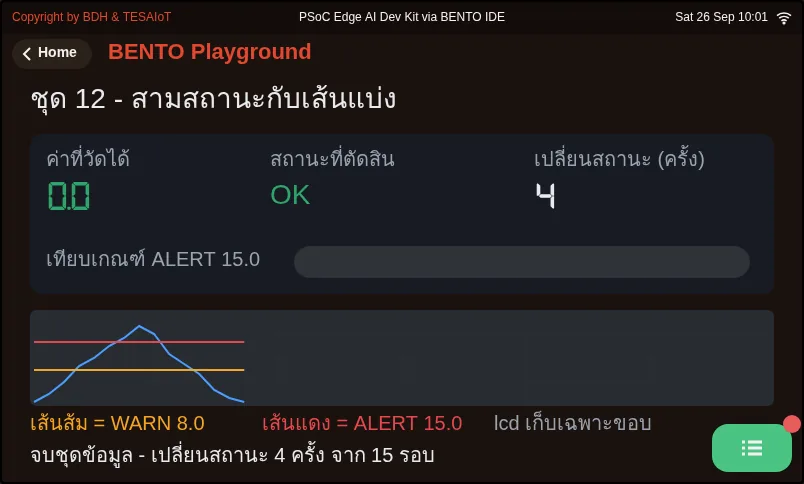
01_state_machine.py Three states, and the dividing line decided in advance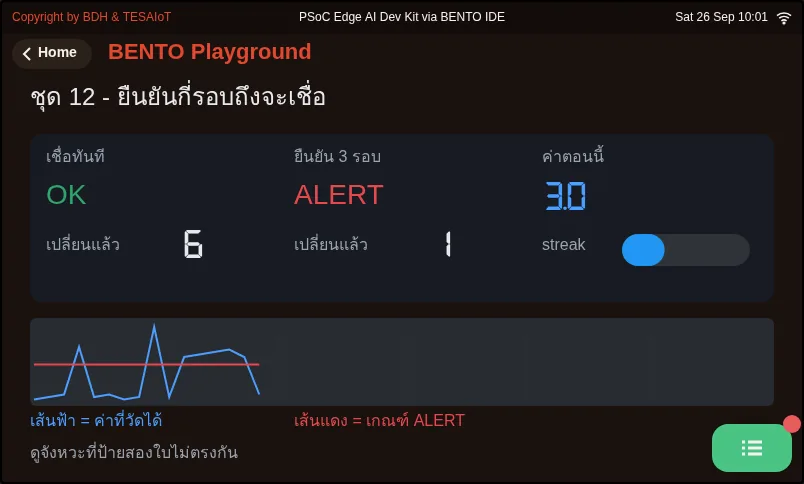
02_confirm_n.py How many rounds in a row before it can be believed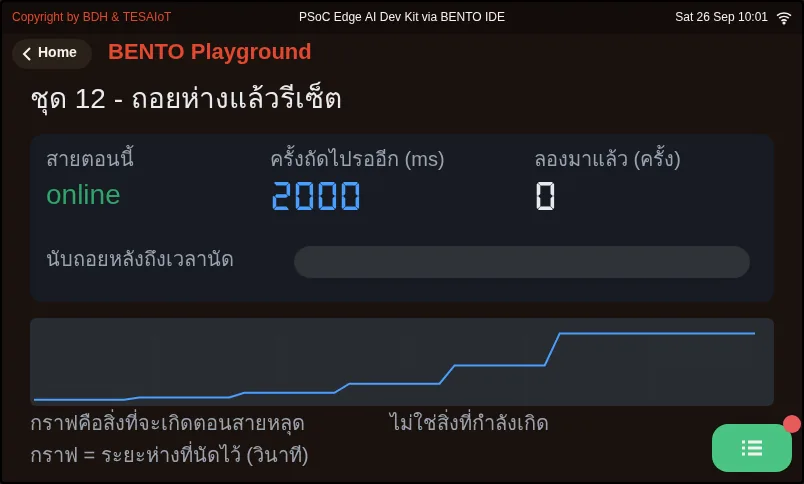
03_reconnect_backoff.py Reconnect with growing backoff, never in a rapid burst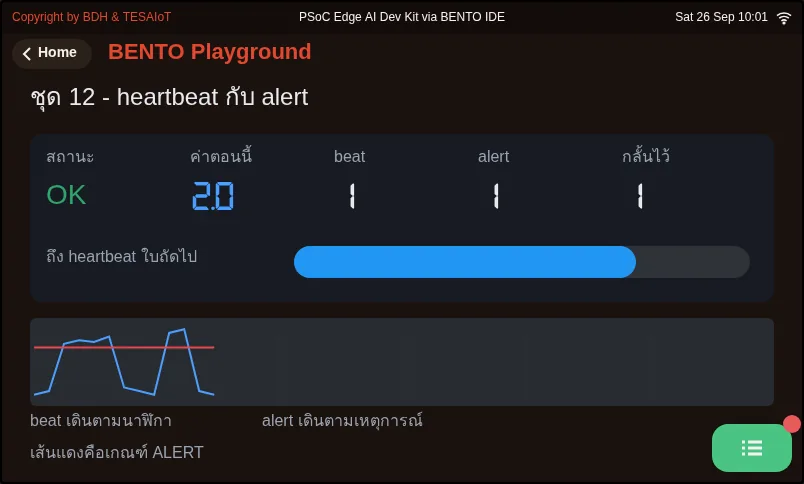
04_heartbeat_and_alert.py Two kinds of message, two rhythms, two separate jobs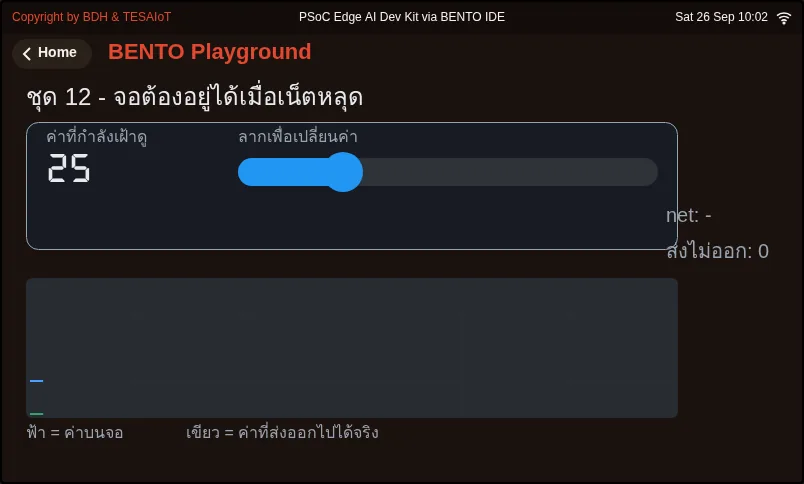
05_hmi_survives_offline.py The screen must keep working when the network dropsCheck your understanding
Section titled “Check your understanding”The same questions are in quiz.yaml for automatic marking.
-
On one round, the board fails to read the IMU (sensors.bmi270.motion() raises OSError). What does read_value() do in the starter? (choose one · objective 1)
- A) Stop the program, to keep a wrong value from being sent to the broker
- B) Return the last value that could be read, and raise a stale flag so the screen shows “value stale, cannot read”
- C) Return 0, which will send the state back to OK
- D) Return the last value and display it as if it were just measured normally
Solution
B — A device that must run for months must tolerate one bad read round. A stale value is still useful, but must never be shown as if it were fresh. A device that fails to read a sensor and then shows the old number frozen is a device lying to the person in front of it.
-
A team writes decide() checking
if value > WARN_LIMITfirst, thenif value > LIMIT(the ALERT threshold). What happens? (choose one · objective 2)- A) Works the same, because the order of ifs has no effect
- B) Raises a runtime error, because the conditions overlap
- C) ALERT is never reached at all, because the looser condition always catches it first, with no error visible
- D) Reaches ALERT sooner, because the lower threshold is checked first
Solution
C — A value over LIMIT is also over WARN_LIMIT, so it always gets caught as WARN first. Checks must always be ordered from strictest to loosest — exactly the trap 01_state_machine.py points to.
-
If CONFIRM_N = 3 and the loop runs every 200 ms, how much slower does the system alert compared with believing instantly? (choose one · objective 2)
- A) 0.2 seconds
- B) 0.6 seconds
- C) 3 seconds
- D) No slower at all
Solution
B — The price of confirmation is N times the loop period: 3 × 200 ms is six-tenths of a second. The team must be able to state this number in seconds — not just set N large without knowing the cost, in trade for a single spike no longer triggering a false alert.
-
A team uses the button built into ui.MsgBox as the confirm button for turning off the warning lamp, then waits for someone to press it. What happens? (choose one · objective 3)
- A) Works normally, because MsgBox sends a clicked event like any other button
- B) A dead button on screen, because a button built into MsgBox does not send an event back to Python; two real ui.Buttons must be used instead
- C) The warning lamp turns off immediately with no need to wait for a press
- D) The board resets, because there are not enough handles
Solution
B — The firmware only binds a callback to ui.Button; a button built into MsgBox does nothing when pressed, and whoever presses it will conclude the machine has hung. The starter creates “confirm” and “cancel” buttons along with the screen and hides them, showing them only when asked.
-
Which statements about moves 4 and 5 of the starter are correct? Choose every correct one. (choose all that apply · objective 4)
- A) send() returns False when not yet connected to the broker, so the caller knows the result and can count failed sends
- B) Reconnecting is scheduled every RETRY_MS, so the loop and screen run every round even when the network drops
- C) Two boards can share the same client_id, as long as they publish to different topics
- D) If it fails to connect, go_online() should be called every loop round, to reconnect as fast as possible
Solution
A, B — send() never fails silently, and reconnecting is scheduled. Retrying rapidly every round would bog down the loop and make the screen stutter. A colliding client_id makes two boards kick each other off in a loop, regardless of which topic each publishes to.
Run the starter successfully before changing anything (about 15 minutes). Record what you see for every item in your learning log.
- On the board’s screen, touch the BENTO Playground card and keep this page open
- Open
s12_capstone_starter.pyin BENTO IDE and edit the CONFIG block to your own:DEVICE_ID,WIFI_SSID,WIFI_PASS,TOPIC(use a unique code in bothDEVICE_IDand the topicbento/<code>/..., such asnok4821, because the starter’s broker is public) - Press Program to Device without changing any logic yet — the screen must show three cards and run immediately (on the Eva, the first sensor read after a reset can wait about 16 seconds, and
wifi.connect()can block for a while — do not press run again right away) - Open MQTT Explorer and subscribe to
bento/<code>/# - Tilt the board past 15 degrees and hold it — the “abnormal” lamp lights, a “waiting for acknowledgement” label appears, and a message with
kindofeventreaches the broker - Test failure: turn off the WiFi the board is connected to (or unplug the router) — the screen must keep drawing, and the network status line shows offline with a count of failed sends
- Write a list of the “the team writes this” points in the file, and match each one to the canvas box that answers it
Going further
Section titled “Going further”Lesson 5.3 begins replacing the “the team writes this” points one at a time until it becomes your team’s own work, then prepares for the presentation. If there is time, watch the extra slides video
on MQTT’s QoS, which is the protocol-level answer to the question of messages not arriving. The upgrade path is tesaiot.connect()
over TLS on port 8884, from lessons 4.7–4.9, but it needs each team’s device identity provisioned first, which is why it is not in the starter.
Next lesson: Lesson 5.3 — Build and present your AIoT mini-product
Reflect
Section titled “Reflect”- What is your team’s problem’s “single value”, and how many axes of raw data does it come from?
- If this screen were mounted in front of a real machine, would someone walking past understand within two seconds whether it is normal or not?
- Which command on your team’s screen would be irreversible if pressed by mistake, and what should its confirmation box say will happen?
Review questions
Answer on your own first, then open the answer.
-
In one round the IMU read fails (sensors.bmi270.motion() raises OSError). What does read_value() in the starter do? (Objective 1)
- หยุดโปรแกรม เพื่อไม่ให้ส่งค่าผิดขึ้น broker
- คืนค่าล่าสุดที่อ่านได้ และยกธง stale ให้จอขึ้นว่า "ค่าค้าง อ่านไม่ได้"
- คืนค่า 0 ซึ่งจะทำให้สถานะกลับเป็น OK
- คืนค่าล่าสุดและแสดงบนจอเหมือนค่าที่เพิ่งวัดได้ตามปกติ
Show answer
Answer: B. คืนค่าล่าสุดที่อ่านได้ และยกธง stale ให้จอขึ้นว่า "ค่าค้าง อ่านไม่ได้"
อุปกรณ์ที่ต้องอยู่เป็นเดือนต้องทนการอ่านพลาดหนึ่งรอบได้ ค่าค้างยังมีประโยชน์ แต่ต้องไม่ถูกโชว์เหมือนค่าสด อุปกรณ์ที่อ่านเซนเซอร์ไม่ได้แล้วโชว์เลขเดิมค้างไว้คือเครื่องที่โกหกคนหน้างาน
-
A team writes decide() checking value > WARN_LIMIT first and value > LIMIT (the ALERT threshold) second. What happens? (Objective 2)
- ทำงานเหมือนเดิม เพราะลำดับของ if ไม่มีผล
- ขึ้น error ตอนรัน เพราะเงื่อนไขทับกัน
- ไม่มีทางเข้า ALERT เลย เพราะเงื่อนไขที่หลวมกว่าดักไว้ก่อนทุกครั้ง และไม่มี error ให้เห็น
- เข้า ALERT เร็วขึ้น เพราะเช็กเกณฑ์ที่ต่ำกว่าก่อน
Show answer
Answer: C. ไม่มีทางเข้า ALERT เลย เพราะเงื่อนไขที่หลวมกว่าดักไว้ก่อนทุกครั้ง และไม่มี error ให้เห็น
ค่าที่เกิน LIMIT ย่อมเกิน WARN_LIMIT ด้วย จึงถูกคืน WARN ไปก่อนทุกครั้ง ลำดับการตรวจต้องไล่จากเข้มที่สุดลงมาเสมอ ซึ่งเป็นกับดักที่ 01_state_machine.py ชี้ไว้
-
With CONFIRM_N = 3 and a 200 ms loop, how much later does the system alert compared with believing the first reading? (Objective 2)
- 0.2 วินาที
- 0.6 วินาที
- 3 วินาที
- ไม่ช้าลงเลย
Show answer
Answer: B. 0.6 วินาที
ราคาของการยืนยันคือ N คูณคาบลูป 3 × 200 ms เท่ากับหกในสิบวินาที ทีมต้องตอบเลขนี้ได้เป็นวินาที ไม่ใช่ตั้ง N ให้ใหญ่ไว้ก่อน แลกกับการที่ค่ากระโดดวูบเดียวไม่ยิงเตือนผิด
-
A team relies on the buttons inside ui.MsgBox to confirm switching the warning lamp off and waits for a press. What happens? (Objective 3)
- ทำงานได้ปกติ เพราะ MsgBox ส่งเหตุการณ์ clicked เหมือนปุ่มทั่วไป
- ได้ปุ่มตายบนจอ เพราะปุ่มในตัว MsgBox ยังไม่ส่งเหตุการณ์กลับมาให้ Python ต้องใช้ ui.Button จริงสองปุ่มแทน
- ไฟเตือนดับทันทีโดยไม่ต้องรอคนกด
- บอร์ดรีเซ็ต เพราะแฮนเดิลไม่พอ
Show answer
Answer: B. ได้ปุ่มตายบนจอ เพราะปุ่มในตัว MsgBox ยังไม่ส่งเหตุการณ์กลับมาให้ Python ต้องใช้ ui.Button จริงสองปุ่มแทน
เฟิร์มแวร์ผูก callback ไว้กับ ui.Button เท่านั้น ปุ่มในตัว MsgBox จึงกดแล้วไม่มีอะไรเกิด คนกดจะสรุปว่าเครื่องแฮงก์ โครงจึงสร้างปุ่ม "ยืนยัน" กับ "ยกเลิก" พร้อมหน้าจอแล้วซ่อนไว้ และ show() ตอนถาม
-
Which statements about moves 4 and 5 of the starter are correct? Choose all that apply. (Objective 4)
- send() คืน False เมื่อยังไม่ได้ต่อ broker ผู้เรียกจึงรู้ผลและนับข้อความที่ส่งไม่ออกได้
- การต่อใหม่ถูกนัดทุก RETRY_MS ลูปและจอจึงเดินครบทุกรอบแม้เน็ตหลุด
- สองบอร์ดใช้ client_id เดียวกันได้ ถ้าส่งคนละ topic
- ถ้าต่อไม่ติด ควรเรียก go_online() ทุกรอบลูป จะได้กลับมาเร็วที่สุด
Show answer
Answer: A. send() คืน False เมื่อยังไม่ได้ต่อ broker ผู้เรียกจึงรู้ผลและนับข้อความที่ส่งไม่ออกได้ · B. การต่อใหม่ถูกนัดทุก RETRY_MS ลูปและจอจึงเดินครบทุกรอบแม้เน็ตหลุด
send() ไม่เงียบหาย และการต่อใหม่ถูกนัดเวลาไว้ ต่อรัว ๆ ทุกรอบทำให้ลูปหน่วงและจอกระตุก ส่วน client_id ซ้ำทำให้สองบอร์ดเตะกันหลุดสลับไปมาเป็นลูป ไม่ว่าจะส่ง topic ไหน
Cite this lesson
If you teach from this lesson or reuse it in slides or documents, credit it with the text below. If you changed it, add (adapted) after the title.
"The starter: Sense, Decide, Show, Send" from TESA Open Knowledge by the Thai Embedded Systems Association (TESA), https://github.com/tesaiot/tesa-qualification-program, licensed under CC BY-NC 4.0
Thai attribution: "โครงตั้งต้น: Sense Decide Show Send" จาก TESA Open Knowledge โดยสมาคมสมองกลฝังตัวไทย (Thai Embedded Systems Association: TESA) https://github.com/tesaiot/tesa-qualification-program สัญญาอนุญาต CC BY-NC 4.0
Lesson link: https://tesaiot.github.io/tesa-qualification-program/en/courses/aiot-micropython/m05-capstone/l02-capstone-starter/
This lesson adapts the source below; keep its credit too.
https://github.com/Advance-Innovation-Centre-AIC/embedded-systems-for-aiot-developer/blob/a80bbe88a34bcb9bb8d991f42f9252b77cdab079/session-12.html (slides 22–34)
TESA Open Knowledge · © 2026 สมาคมสมองกลฝังตัวไทย (TESA) · CC BY-NC 4.0
Content is licensed CC BY-NC 4.0. Reuse it non-commercially and credit the Thai Embedded Systems Association (TESA) every time. · How to cite TESA