Leaving the desk: the first WiFi connection
Module 1 — Existing UI-based Application · Slides: slides.md · Module overview · Course page
Bring the board onto WiFi for the first time through your team’s phone hotspot, read its own IP address, let it scan the whole room to diagnose a failed connection, and separate “connected back then” from “still connected now”.
Objectives
Section titled “Objectives”By the end of this lesson you will be able to:
- Connect the board to your team’s hotspot with wifi.connect(), showing a status label and calling ui.poll() before the blocking line, then report the time taken in ms with ticks_diff() and the IP address on screen, for both a correct and a wrong password
- Check whether the board really has an IP address by comparing wifi.ip() with “0.0.0.0” directly, and explain why if wifi.ip() passes even when there is no address yet
- Use wifi.scan() to separate “the board cannot hear the network” from “it hears it but cannot join”, sorting the results by rssi yourself and taking signal strength only from scan(), never from wifi.status()
- Explain the difference between connect() (did it succeed back then) and is_connected() (is it still connected now), and reuse the structure of 02_link_uptime.py to ask again every loop and log to the Console drawer only when the state changes
Before you start
Section titled “Before you start”Your organisation’s WiFi needs a browser login page before you can use it, and the board has no browser to click “accept” with. So today every team’s board joins one team member’s phone hotspot instead.
Give the hotspot a short English name with no spaces, for example bento-team05, a password of at least 8 characters. On an iPhone turn on Maximize Compatibility.
On Android pick the 2.4 GHz band if it is offered. Keep the hotspot page open the first time the board connects, then edit WIFI_SSID and WIFI_PASS at the top of every file that goes online.
Review two things from lesson 1.2 first: ui.poll() after creating or changing a widget, and timing with time.ticks_ms() paired with ticks_diff() (not yet tested with every hotspot model).
- Equipment: an Eva Kit or TESAIoT Dev Kit board with the BENTO MicroPython firmware installed, or the BENTO Emulator in BENTO IDE
- Before this: Lesson 1.3 — Inside the box: two cores, AIoT and your team’s screen
See it work first
Section titled “See it work first”In this set of lessons, seeing it work always comes before the theory. If the front-of-room board is running 06_command_comes_back.py as team00, open the shared mqtt_dashboard.html page on your own computer.
Type team00 in the team box, then all press beep or send a short message at the same time — but write your guess in your learning log first: what number will “received” show on the front board?
Then open 01_wifi_first_connect.py, edit the top two lines, and send it to the board right away. While the screen sits still, count in your head how long it takes, then compare it with the ms number the board reports when it comes back.
A screen that sits still for a while is not a hung board — do not reset it, do not unplug it.
Concepts
Section titled “Concepts”Lessons 1.4–1.6 tell one story across seven files, with two arrows running in opposite directions: a real value leaves the board for others to see, and a command from far away comes back to switch something on our desk.
In the middle sits the broker, which lets the two sides stay strangers to each other — knowing only the same topic name. This lesson is the first part of that story: get the board onto the network (files 01 and 04)
and ask the right question about whether the link is still there (file 02). Sending values out and taking commands back is lesson 1.5.
The wifi module used today has five functions. The first three are for connecting, and they differ in when they answer, not in what data they return: wifi.connect(ssid, pw) blocks and returns True or False,
answering “did it succeed back then”. wifi.ip() always returns a string, never None. wifi.is_connected() does not block, can be asked every loop, and answers “is it still connected now”.
The other two are for surveying: wifi.scan() and wifi.status(). disconnect(), ping() and softap() are for lessons 4.1–4.3, and you can always check for yourself with print(dir(wifi)).
connect() can block for up to about 85 seconds, and during that time the screen does not move a single pixel. That is why the status label and ui.poll() must come before that line.
A label created but never “knocked” with ui.poll() shows up only after connect() finishes — which is exactly the moment nobody needs it any more. We time across that line with ticks_diff(), because “it took a while” is not data.
If the result is False, the file reports it and immediately raise SystemExit. A program that only speaks up on success stays silent at the exact moment people most want to know — and a wrong password takes longer than a correct one,
because the board quietly retries several times on its own before it finally gives up and returns False. A real system needs a ceiling on how many retries it makes.
There is another trap with no error to catch: joining the network and getting an address are two separate steps. While DHCP is still pending, wifi.ip() returns "0.0.0.0", which Python treats as true.
So if wifi.ip(): passes even though the board still cannot send anything out — you must compare it with "0.0.0.0" directly.
Before asking “why won’t it connect”, you first have to answer can the board even hear that network. The two problems are fixed in different ways. wifi.scan() needs nobody’s password;
it returns a list of (ssid, rssi, security, channel) in whatever order the chip found them — not sorted for you, so you must sort it yourself — and it blocks for roughly 3 to 10 seconds (the 5 GHz band takes longer).
rssi is always negative, and the closer to zero, the stronger. wifi.status() does return a dict with ssid and rssi keys, but the firmware fills them with a fixed "" and 0.
Chart them and you get a flat zero line forever with no error at all — real signal strength comes only from scan().
02_link_uptime.py uses no new commands at all. Its structure is the same as 08_status_screen.py from lesson 1.2, only the source of the value changes: it asks is_connected() again every loop.
The screen answers “what is the state right now” (an IP label, seconds online, a chart line); the drawer answers “what has happened so far”, and it writes only when the state changes.
last = -1 means “the state is not known yet”, so the first loop always counts as a change. Asking once at the start and trusting it forever is reporting the state of the past.
Worked example
Section titled “Worked example”The slides follow the order 01_wifi_first_connect.py → 04_scan_the_room.py → 02_link_uptime.py (file 03 belongs to lesson 1.5).
In 01, guess before you run it how long the screen will sit still, then compare it with the ms number on screen. Then read how the label and ui.poll() sit before the connect() line.
If the board cannot find the hotspot, do not guess — run 04 to see whether the board can hear your team’s network name at all. In this file, notice the nets.sort(...) line
and the line that compares status()["rssi"] against the real signal strength, so you can see it with your own eyes. For 02, let it run and watch for the full 30 seconds, then open the drawer and read the history.
Every file ends with a your turn block — change or try something, then run it again.
| File | What this file teaches |
|---|---|
| examples/01_wifi_first_connect.py | Take the board online for the first time, then read its own address |
| examples/02_link_uptime.py | “Connected” and “still connected” are not the same question |
| examples/04_scan_the_room.py | Have the board listen to the whole room, and say who is where |
The slides for this lesson also refer to files that live in other lessons:
- m01-ui-application/l02-first-lines-on-screen/examples/08_status_screen.py — one status screen, with three modules sharing the work
- m01-ui-application/l05-values-out-commands-back/examples/05_value_leaves_the_board.py — a value measured on this desk shows up on someone else’s machine
- m01-ui-application/l05-values-out-commands-back/examples/06_command_comes_back.py — someone else types a command from far away, and a light on our desk turns on
- m04-iot-connectivity/l03-network-status-lab/examples/04_ping_two_targets.py — the gateway answers but the internet does not — what does that mean
- shared/web/my_first_reader.html — reads values from the board
Screens from the BENTO Emulator for this lesson’s examples (click a file name to open the code)
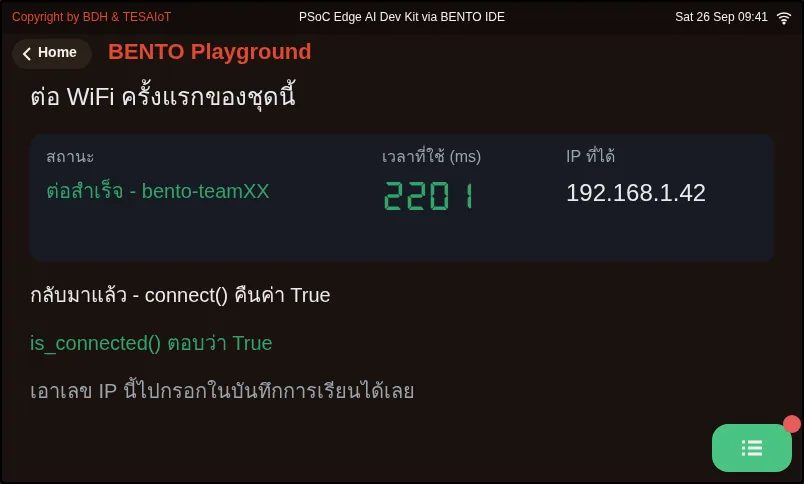
01_wifi_first_connect.py Take the board online for the first time, then read its own address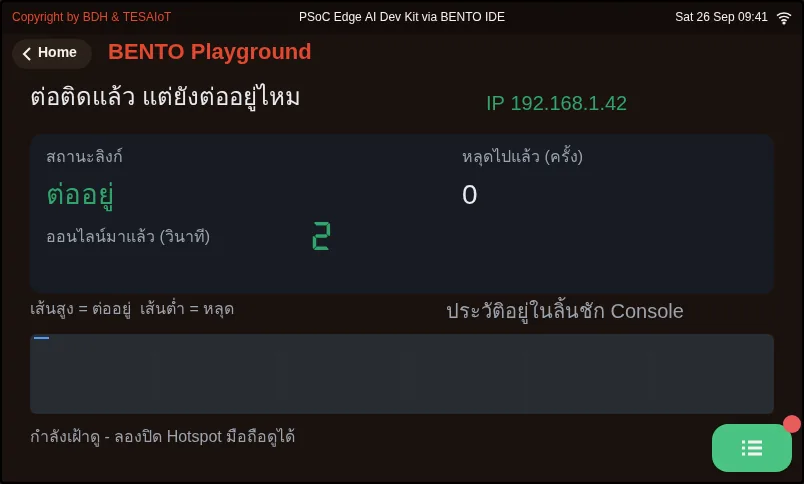
02_link_uptime.py "Connected" and "still connected" are not the same question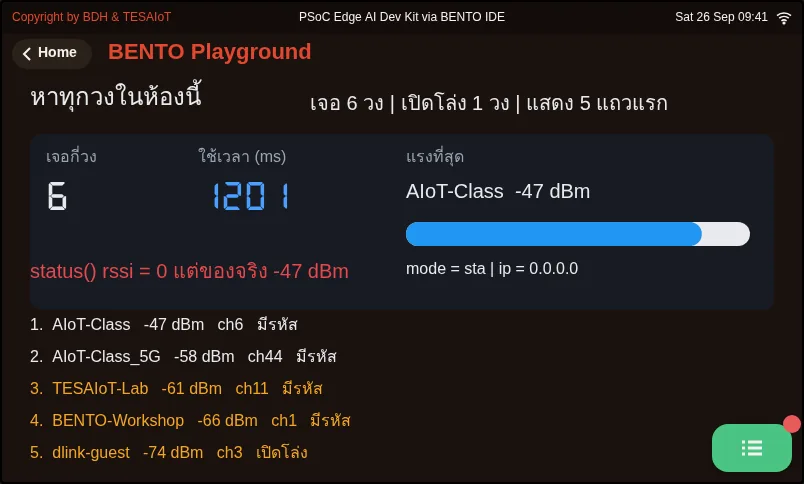
04_scan_the_room.py Have the board listen to the whole room, and say who is whereCheck your understanding
Section titled “Check your understanding”The same questions are in quiz.yaml for automatic marking.
-
You create a ui.Label with the text “Connecting” and call wifi.connect() right away without calling ui.poll(). What does someone watching the screen see? (choose one · objective 1)
- A) The screen sits still with no label the whole time it waits, and the label shows up only after connect() finishes — far too late to matter
- B) The label appears at once, because connect() calls ui.poll() for you while it waits
- C) An error, because you cannot create a widget before connecting to WiFi
- D) The label appears, then disappears by itself once connect() returns True
Solution
A — connect() can block for up to about 85 seconds and the screen does not move at all during that time. A label whose ui.poll() has not been “knocked” shows up only after connect() finishes, so the label and ui.poll() must come before the blocking line.
-
A team typed one character of the password wrong, and connect() took much longer than a run with the correct password. Why? (choose one · objective 1)
- A) The board does not give up on the first try — it quietly retries several times on its own before returning False
- B) The board hung and must always be reset on a wrong password
- C) ticks_diff() miscounts when connect() returns False
- D) The hotspot sends the correct password back for the board to retry with, which is slow
Solution
A — Failure is more expensive than success in networking, because there are hidden retries underneath. This is exactly why a real system needs a ceiling on how many times it retries.
-
The link is up but DHCP is still pending. Which code correctly catches that the board has no IP address yet? (choose one · objective 2)
- A) if not wifi.ip()
- B) if wifi.ip() is None
- C) if wifi.ip() == “0.0.0.0”
- D) if wifi.ip() == “”
Solution
C — wifi.ip() always returns a string, never None, and while there is no address yet it returns “0.0.0.0” — which is not an empty string, so Python treats it as true. You must compare it with “0.0.0.0” directly.
-
Which statements about wifi.scan() and wifi.status() are correct? Choose every correct one. (choose all that apply · objective 3)
- A) scan() can scan without needing anyone’s password
- B) scan() already returns the list sorted from strongest to weakest
- C) status()[“rssi”] always answers 0 — real signal strength must come from scan()
- D) the more negative rssi is, the stronger the signal
Solution
A, C — scan() needs nobody’s password, but returns results in whatever order the chip found them, so you must sort them yourself. rssi is always negative and the closer to zero, the stronger; status()’s ssid and rssi keys are the fixed values “” and 0.
-
A screen mounted on the shop floor must tell passers-by whether the board is still online, and keep a history of when it dropped. Which approach is correct? (choose one · objective 4)
- A) Store the value connect() returned at the start of the program, and display that value forever
- B) Ask is_connected() again every loop, update the screen every loop, and print to the drawer only when the state changes
- C) Ask is_connected() every loop and print to the drawer every loop too, so the history is complete
- D) Call connect() again every loop to confirm the board is still connected
Solution
B — connect() answers whether it succeeded back then; is_connected() answers whether it is still connected now. Because the screen must answer about the present, it has to ask again every loop. Printing to the drawer every loop would repeat the same line thirty times over, and you would never be able to find the moment it actually dropped.
Get onto the network, then prove it with numbers. Record every result in your learning log.
- Set up the hotspot per the table (English name, password of at least 8 characters, 2.4 GHz or Maximize Compatibility), then edit
WIFI_SSIDandWIFI_PASS -
01: the screen shows the time taken in ms and the board’s IP address. Record both values, along with the time you counted in your head while waiting -
01your turn: type one character of the password wrong and run it again. Record the time and compare it with the correct run, then write down why the wrong run took longer -
04your turn: carry the board to the far end of the room and run it again. Record the same network’s name and dBm reading at both spots, and check whether its rank in the list moves -
02your turn: while the program is watching, carry the board to the far end of the room and back. Open the drawer, count the lines, and record at which second it dropped (an empty drawer means the link never dropped, not that the program failed to run)
Going further
Section titled “Going further”Lesson 1.5 starts from file 03, where your team writes its own rule for what counts as “the link is good”, then sends a real knob value out to broker.hivemq.com with mqtt and json,
and takes a command back from a web page to switch a light on the board. Keep your team’s IP address and hotspot name in your learning log — you will need them again right away.
Next lesson: Lesson 1.5 — Values out, commands back: MQTT on a public broker
Reflect
Section titled “Reflect”- Where in your own work would a failure leave the screen silent, and how would a viewer know at which step it stopped?
- If the board kept retrying forever with no ceiling, what would a system left running unattended lose?
- Is the screen mounted at your workplace answering about the present, or only about what was true when it was switched on?
Review questions
Answer on your own first, then open the answer.
-
You create a ui.Label saying "connecting" and call wifi.connect() right away without calling ui.poll(). What will someone watching the screen see? (Objective 1)
- จอนิ่งโดยไม่มีป้ายตลอดช่วงที่รอ แล้วป้ายไปโผล่หลัง connect() จบ ซึ่งสายเกินไปแล้ว
- ป้ายขึ้นทันที เพราะ connect() เรียก ui.poll() ให้เองระหว่างรอ
- ได้ error เพราะห้ามสร้าง widget ก่อนต่อ WiFi
- ป้ายขึ้นแล้วหายไปเองเมื่อ connect() คืน True
Show answer
Answer: A. จอนิ่งโดยไม่มีป้ายตลอดช่วงที่รอ แล้วป้ายไปโผล่หลัง connect() จบ ซึ่งสายเกินไปแล้ว
connect() บล็อกได้นานถึงราว 85 วินาทีและจอไม่ขยับเลยระหว่างนั้น ป้ายที่ยังไม่ได้เคาะ ui.poll() จะไปโผล่หลัง connect() จบ ป้ายกับ ui.poll() จึงต้องมาก่อนบรรทัดที่บล็อก
-
A team mistypes one character of the password and finds connect() takes much longer than with the correct password. Why? (Objective 1)
- บอร์ดไม่ได้ยอมแพ้ตั้งแต่ครั้งแรก มันลองใหม่ให้เองหลายรอบก่อนจะคืน False
- บอร์ดแฮงก์ ต้องกดรีเซ็ตเสมอเมื่อรหัสผิด
- ticks_diff() นับผิดเมื่อ connect() คืน False
- Hotspot ส่งรหัสที่ถูกกลับมาให้บอร์ดลองใหม่ จึงช้า
Show answer
Answer: A. บอร์ดไม่ได้ยอมแพ้ตั้งแต่ครั้งแรก มันลองใหม่ให้เองหลายรอบก่อนจะคืน False
ความล้มเหลวแพงกว่าความสำเร็จในงานเครือข่าย เพราะมีการลองใหม่ซ่อนอยู่หลายรอบ นี่คือเหตุผลที่ระบบจริงต้องมีเพดานว่าจะลองกี่ครั้ง
-
The link is up but DHCP has not answered yet. Which code correctly detects that the board has no IP address? (Objective 2)
- if not wifi.ip()
- if wifi.ip() is None
- if wifi.ip() == "0.0.0.0"
- if wifi.ip() == ""
Show answer
Answer: C. if wifi.ip() == "0.0.0.0"
wifi.ip() คืนสตริงเสมอ ไม่เคยคืน None และตอนยังไม่มีที่อยู่มันคืน "0.0.0.0" ซึ่งไม่ใช่สตริงว่าง Python จึงถือว่าจริง ต้องเทียบกับ "0.0.0.0" ตรง ๆ เท่านั้น
-
Which statements about wifi.scan() and wifi.status() are correct? Choose all that apply. (Objective 3)
- scan() สแกนได้โดยไม่ต้องรู้รหัสผ่านของวงไหนเลย
- scan() คืนรายชื่อเรียงจากแรงไปอ่อนมาให้แล้ว
- status()["rssi"] ตอบ 0 เท่าเดิมเสมอ ความแรงจริงต้องมาจาก scan()
- rssi ยิ่งติดลบมาก สัญญาณยิ่งแรง
Show answer
Answer: A. scan() สแกนได้โดยไม่ต้องรู้รหัสผ่านของวงไหนเลย · C. status()["rssi"] ตอบ 0 เท่าเดิมเสมอ ความแรงจริงต้องมาจาก scan()
scan() ไม่ต้องรู้รหัสผ่านใคร แต่คืนตามลำดับที่ชิปเจอ ต้อง sort เอง rssi ติดลบเสมอและยิ่งใกล้ศูนย์ยิ่งแรง ส่วนคีย์ ssid กับ rssi ของ status() เป็นค่าตายตัว "" กับ 0
-
A screen at the work site must show passers-by whether the board is still online and keep a history of when it dropped. Which approach is correct? (Objective 4)
- เก็บค่าที่ connect() คืนมาตอนต้นโปรแกรม แล้วแสดงค่านั้นไปตลอด
- ถาม is_connected() ใหม่ทุกรอบ อัปเดตจอทุกรอบ และพิมพ์ลงลิ้นชักเฉพาะตอนสถานะเปลี่ยน
- ถาม is_connected() ทุกรอบ แล้วพิมพ์ลงลิ้นชักทุกรอบด้วย ประวัติจะได้ครบ
- เรียก connect() ซ้ำทุกรอบเพื่อยืนยันว่ายังต่ออยู่
Show answer
Answer: B. ถาม is_connected() ใหม่ทุกรอบ อัปเดตจอทุกรอบ และพิมพ์ลงลิ้นชักเฉพาะตอนสถานะเปลี่ยน
connect() ตอบว่าตอนนั้นสำเร็จไหม ส่วน is_connected() ตอบว่าตอนนี้ยังต่ออยู่ไหม จอต้องตอบเรื่องปัจจุบันจึงถามซ้ำทุกรอบ ถ้ายิงลงลิ้นชักทุกรอบจะได้บรรทัดเดิมซ้ำสามสิบบรรทัดจนหาไม่เจอว่าหลุดตอนไหน
Cite this lesson
If you teach from this lesson or reuse it in slides or documents, credit it with the text below. If you changed it, add (adapted) after the title.
"Leaving the desk: the first WiFi connection" from TESA Open Knowledge by the Thai Embedded Systems Association (TESA), https://github.com/tesaiot/tesa-qualification-program, licensed under CC BY-NC 4.0
Thai attribution: "บอร์ดออกจากโต๊ะ: ต่อ WiFi ครั้งแรก" จาก TESA Open Knowledge โดยสมาคมสมองกลฝังตัวไทย (Thai Embedded Systems Association: TESA) https://github.com/tesaiot/tesa-qualification-program สัญญาอนุญาต CC BY-NC 4.0
This lesson adapts the source below; keep its credit too.
https://github.com/Advance-Innovation-Centre-AIC/embedded-systems-for-aiot-developer/blob/a80bbe88a34bcb9bb8d991f42f9252b77cdab079/session-02.html (slides 1–13)
TESA Open Knowledge · © 2026 สมาคมสมองกลฝังตัวไทย (TESA) · CC BY-NC 4.0
Content is licensed CC BY-NC 4.0. Reuse it non-commercially and credit the Thai Embedded Systems Association (TESA) every time. · How to cite TESA